Context
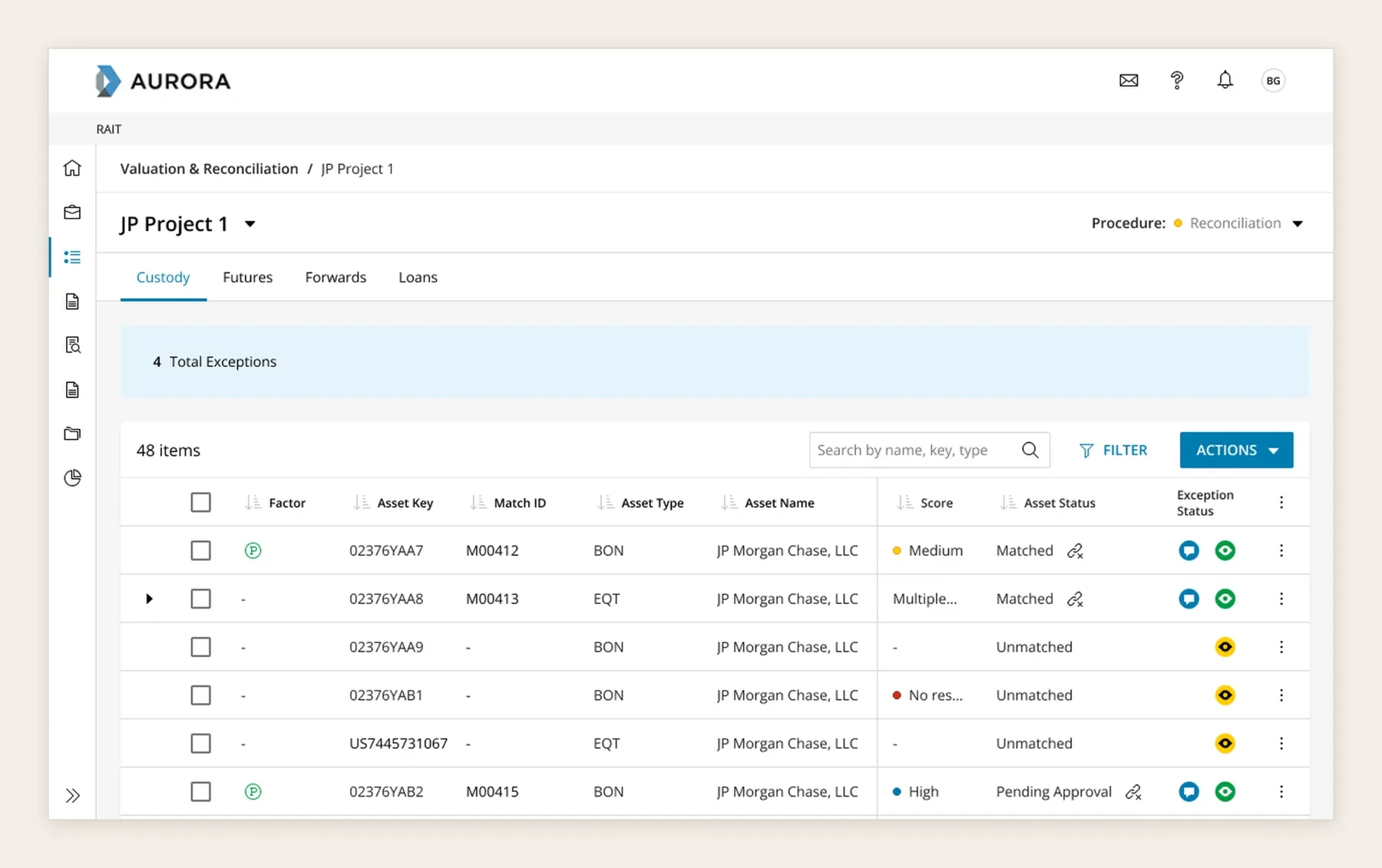
Auditors use reconciliation to check that the investments a fund reports actually exist at year end. The platform compares the fund’s own holding records with the custodian’s records and matches positions automatically. When a match isn’t exact, the system proposes one with a high, medium or low confidence score, and nothing is confirmed until an auditor approves or rejects it.
The problem
Some positions never match automatically because the two sources describe the same asset differently. One uses a different type of identifier, or a long name instead of a short one. Auditors needed a way to match these by hand, and to see clearly which data came from the client and which from the custodian.
The flow
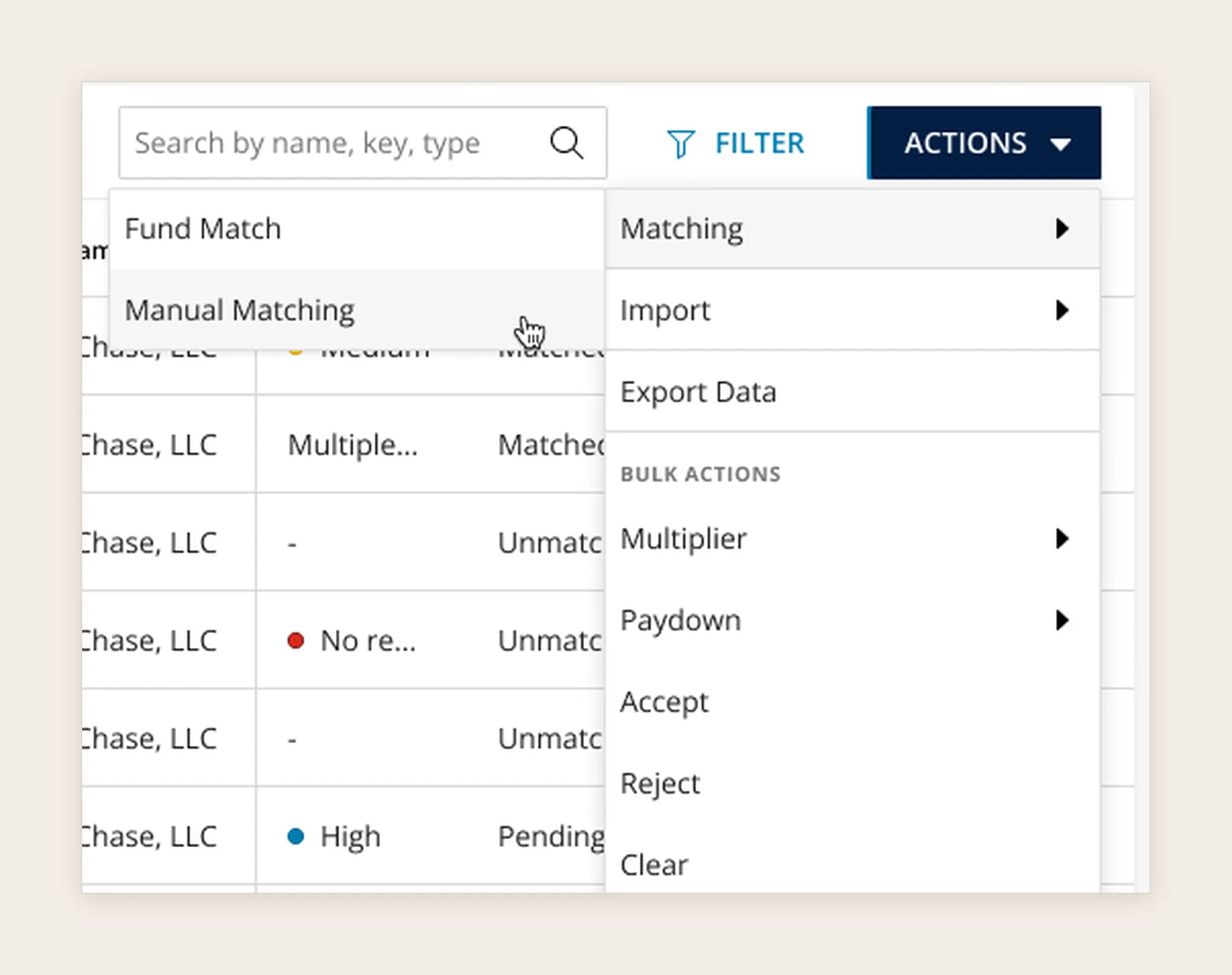
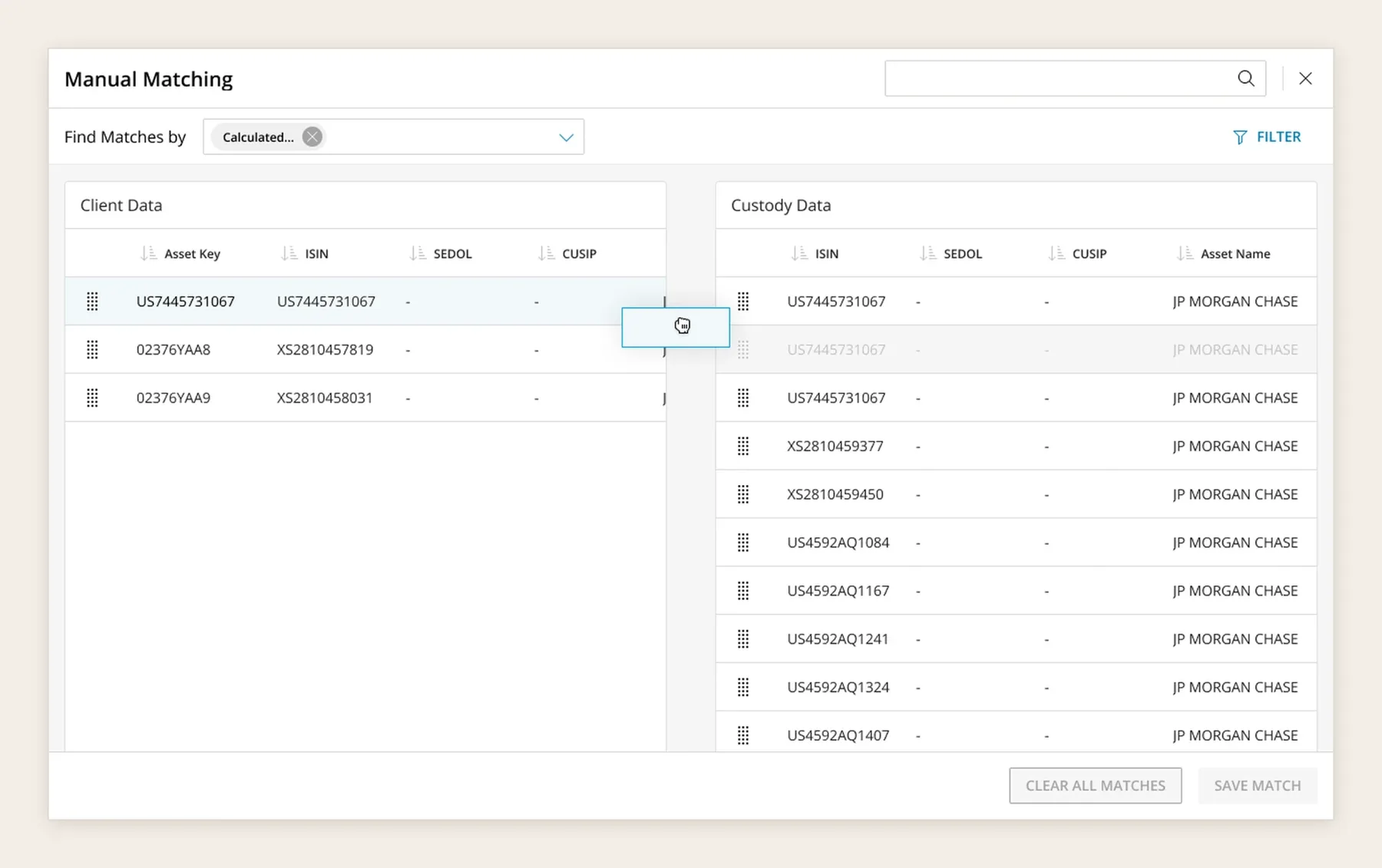
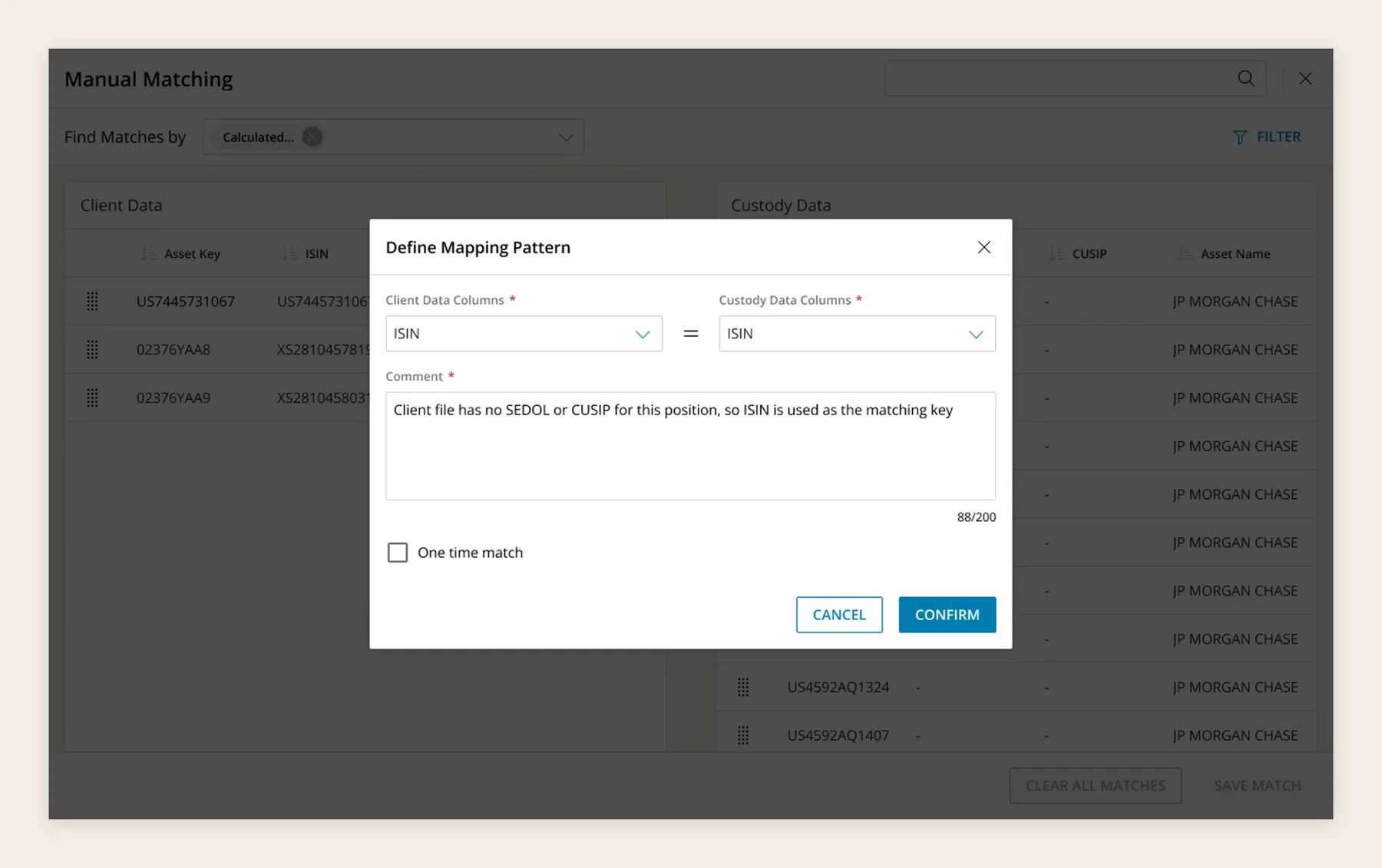
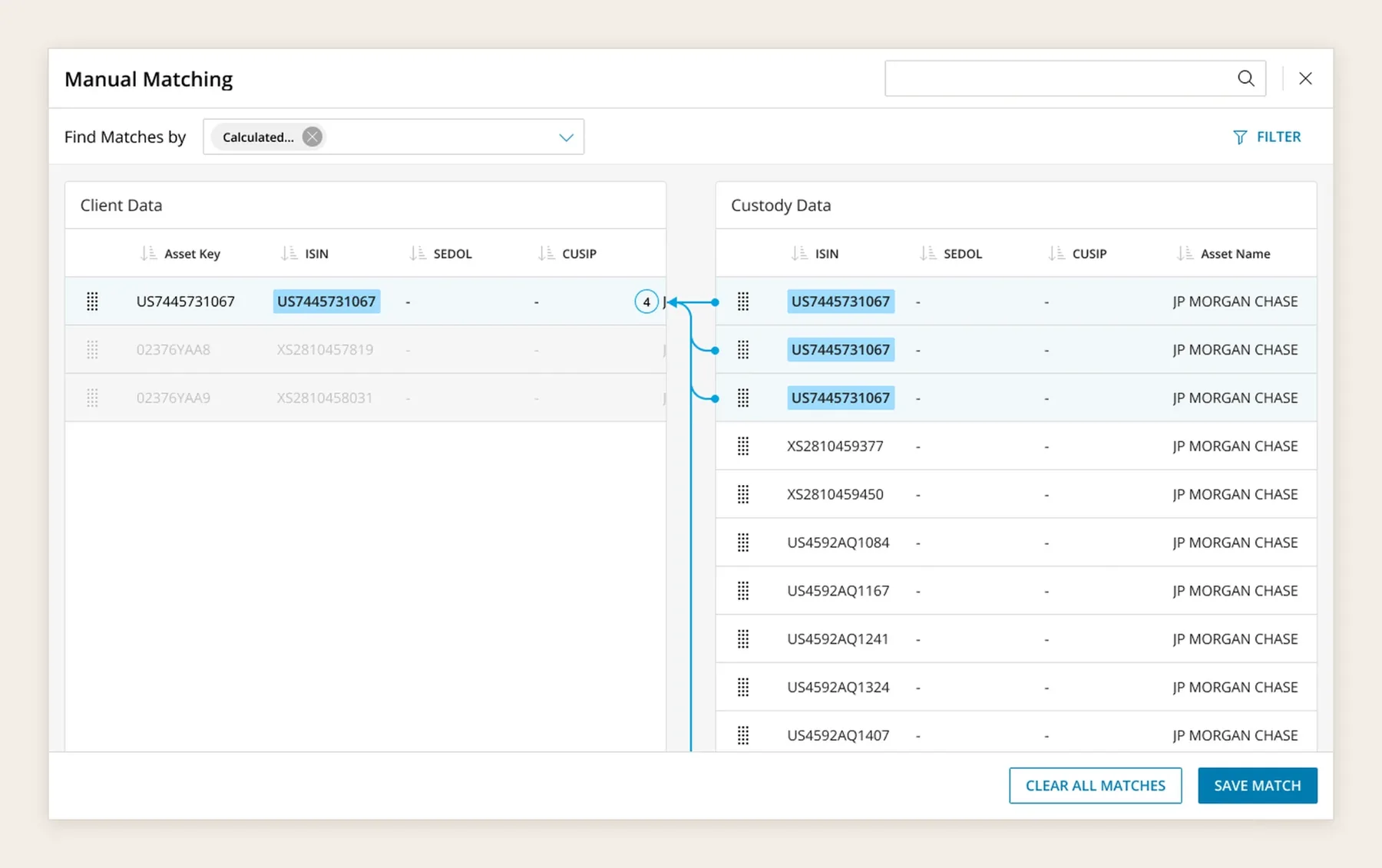
The auditor opens manual matching from the reconciliation table. Client data and custody data sit side by side, showing all unmatched positions, with search by name, identifier or type. The auditor drags a position from one side onto the other, in either direction. A dialog then asks which column on one side equals which on the other, and requires a comment explaining the match. This mapping pattern is then applied automatically if the same difference appears for another entity in the engagement. If the auditor doesn’t want that, they choose a one time match. Matches can be cleared or saved at any point, and back in the table both positions show as matched.
Reviewing what the system proposed
I also designed how auditors work with automatic matching. While the system is matching, they see that it’s in progress, and then that it has finished. When it proposes matches, auditors approve or reject them, and can select several at once. They can also clear matches, delete them, or unlink two positions that were matched.
Design decisions
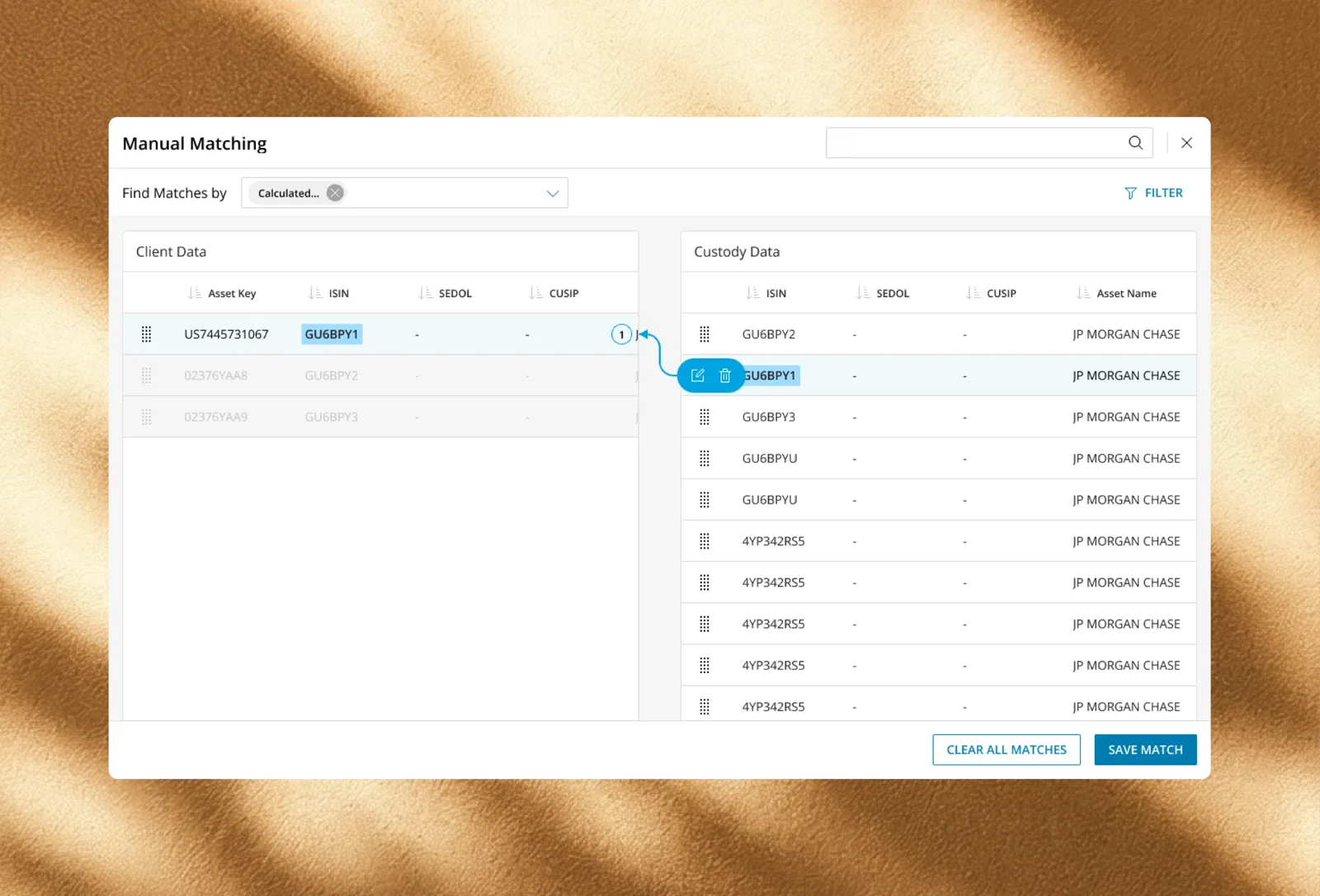
Two clear sources. Client data and custody data sit in two separate panels, each with its own title and its own set of columns. Auditors had to see at a glance which side a position came from, because a match only makes sense when you know what you’re comparing with what.
Showing the match without overwhelming. When two positions are matched, a line connects them across the two panels. I added it to give a visual separation between client and custody data without overwhelming the user. The matching identifiers are highlighted on both sides and the other rows are dimmed. When one client position matches several custody positions, a count on the line shows how many.
Explaining before confirming. A mapping pattern can be applied again to other entities in the engagement, so a match isn’t a private decision. That’s why the comment is required, and why the auditor can choose a one time match when the case is an exception.
Easy to undo. Each match can be edited or deleted, all matches can be cleared at once, and nothing is saved until the auditor clicks Save match. Matching by hand means people will sometimes drag the wrong row, so correcting it had to be simple.

Working within technical limits
I worked mostly with the business analyst, who knew both the technical side and the business needs in depth. The product owners for this feature changed during the project, so she became my main point of contact. She validated my first designs, and when she wasn’t sure the team could build something, we brought the developers in. An architect was often on these calls too, since a lot depended on him in deciding what could be implemented. The developers quickly understood what was technically possible and how best to approach it, so we could discuss everything early.
A guide for the pattern
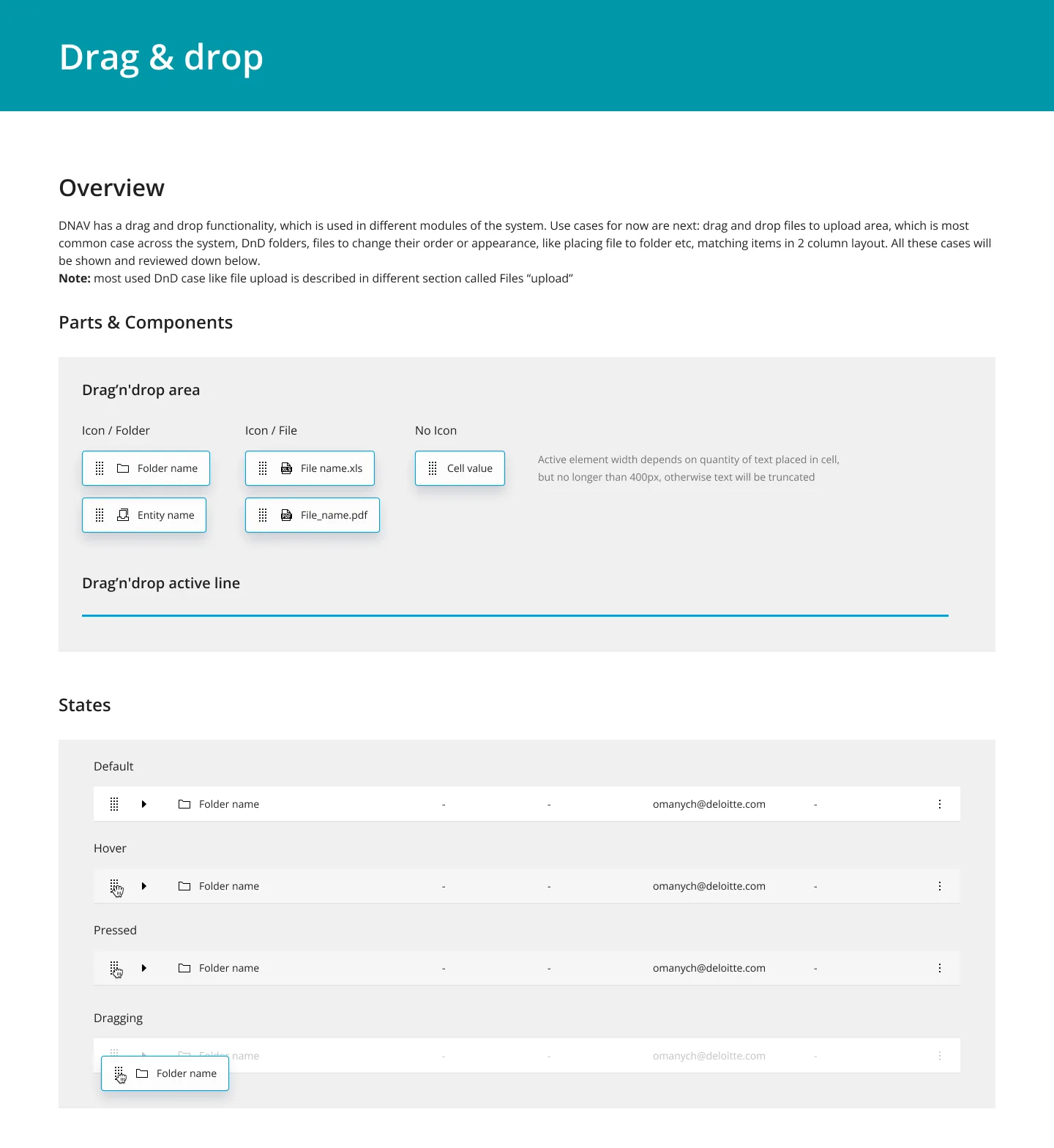
Drag and drop was used in several modules of the platform: for uploading files, for moving files and folders, and for matching items in a two column layout. Together with another designer, I created a guide describing how it works across the system, with its parts, the variants of the dragged element and its states. The development team then added it to Storybook.
Outcome
The whole flow was released. It worked, and it saved auditors real time. The product owners liked it, the developers implemented it and the business analyst was satisfied.