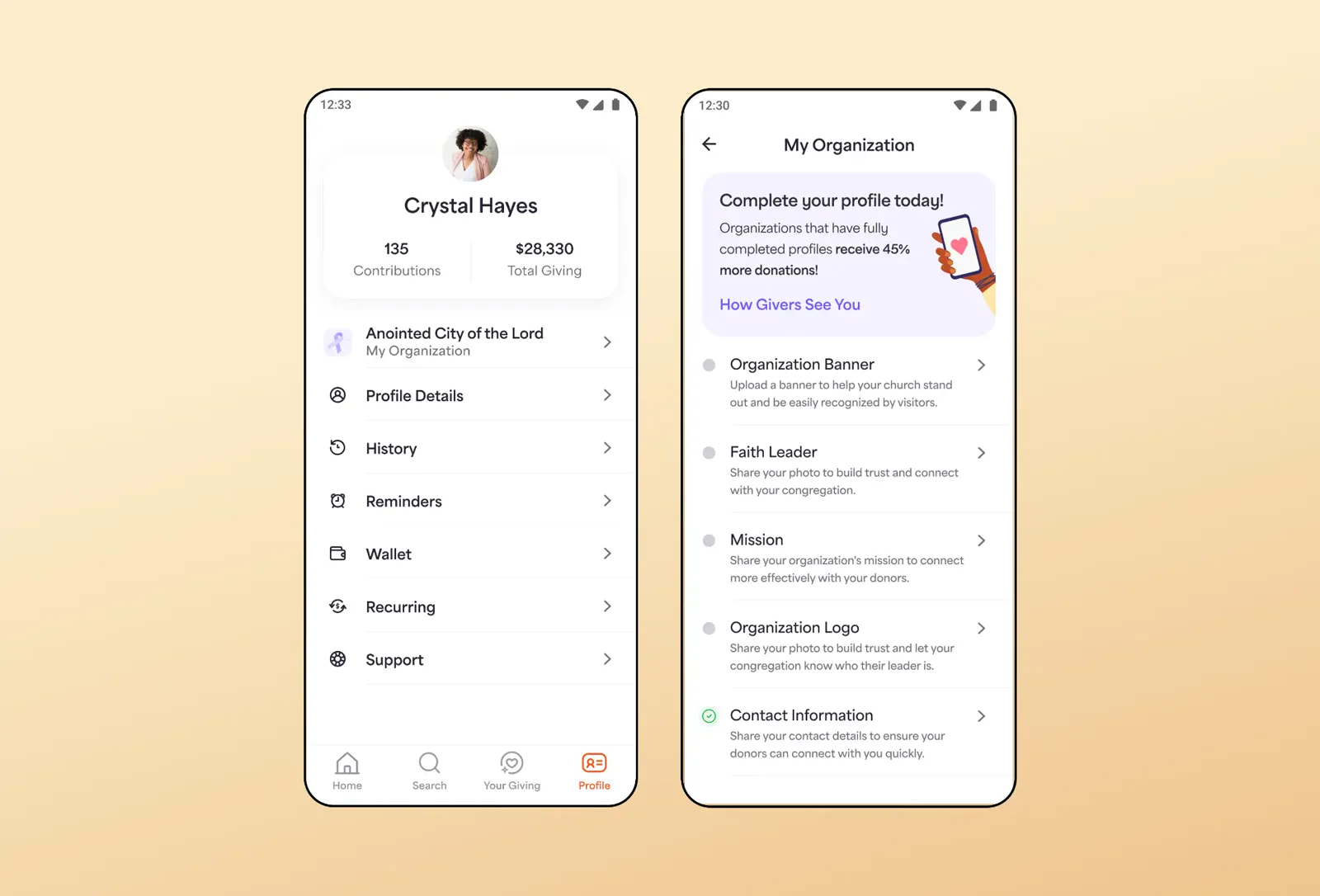
The brief
In a donation app, people find churches and other organisations and give to them. The task was to let organisation officials edit their profile from the mobile app. The hypothesis was that this would help them complete their profiles faster, and success would be measured by the number of organisations with completed profiles. Behind it were outcomes for donors: being able to recognise the organisation, and to find it and give to it quickly.
A question I asked first
The brief assumed officials use the same mobile app as donors. I questioned whether that was true, or whether only donors use the mobile app.
Research
I started from the personas provided with the brief and mapped who is involved in two kinds of organisation, a smaller community church and a larger established one. I also created an empathy map, looked at how other companies solve similar problems, and prepared questions for a stakeholder. His answers shaped the design:
Officials can be donors too, so they already use the same app. That answered my first question.
Officials set up their profile rarely, once at the start and again only if something changes, like a rebrand, a campaign or a new location.
They likely don’t understand the difference between the logo and the banner.
They don’t upload photos often enough, which the company was already trying to improve.
What I designed
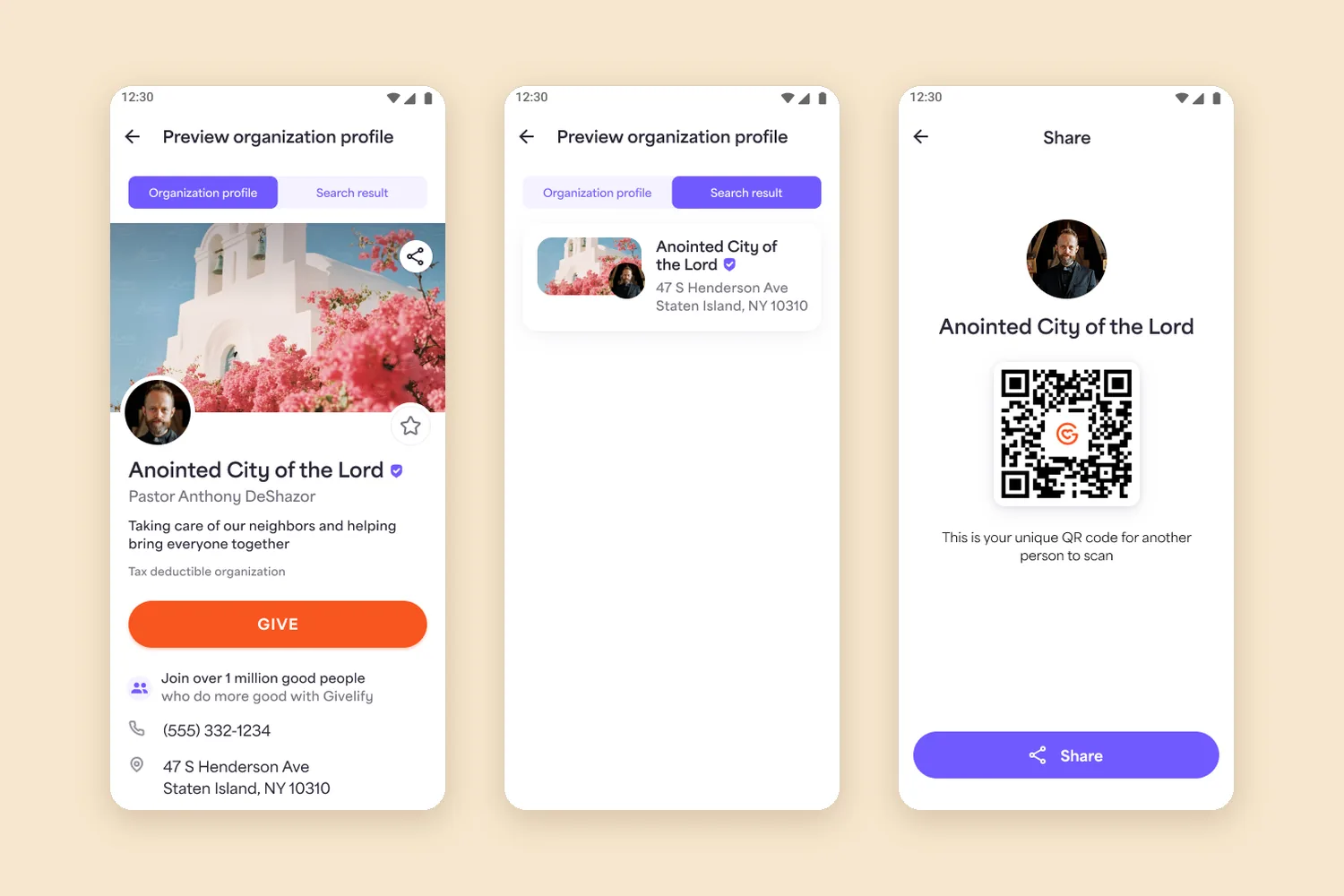
An update card on Home tells officials they can now edit their organisation’s details from the app. In Profile, the organisation appears as its own entry and opens a checklist of profile sections: banner, faith leader, mission, logo and contact information. Each section opens a short screen of its own. After saving, a confirmation appears and the section is marked complete in the checklist. Officials can preview the profile in two ways: as the full organisation page and as it appears in search results.
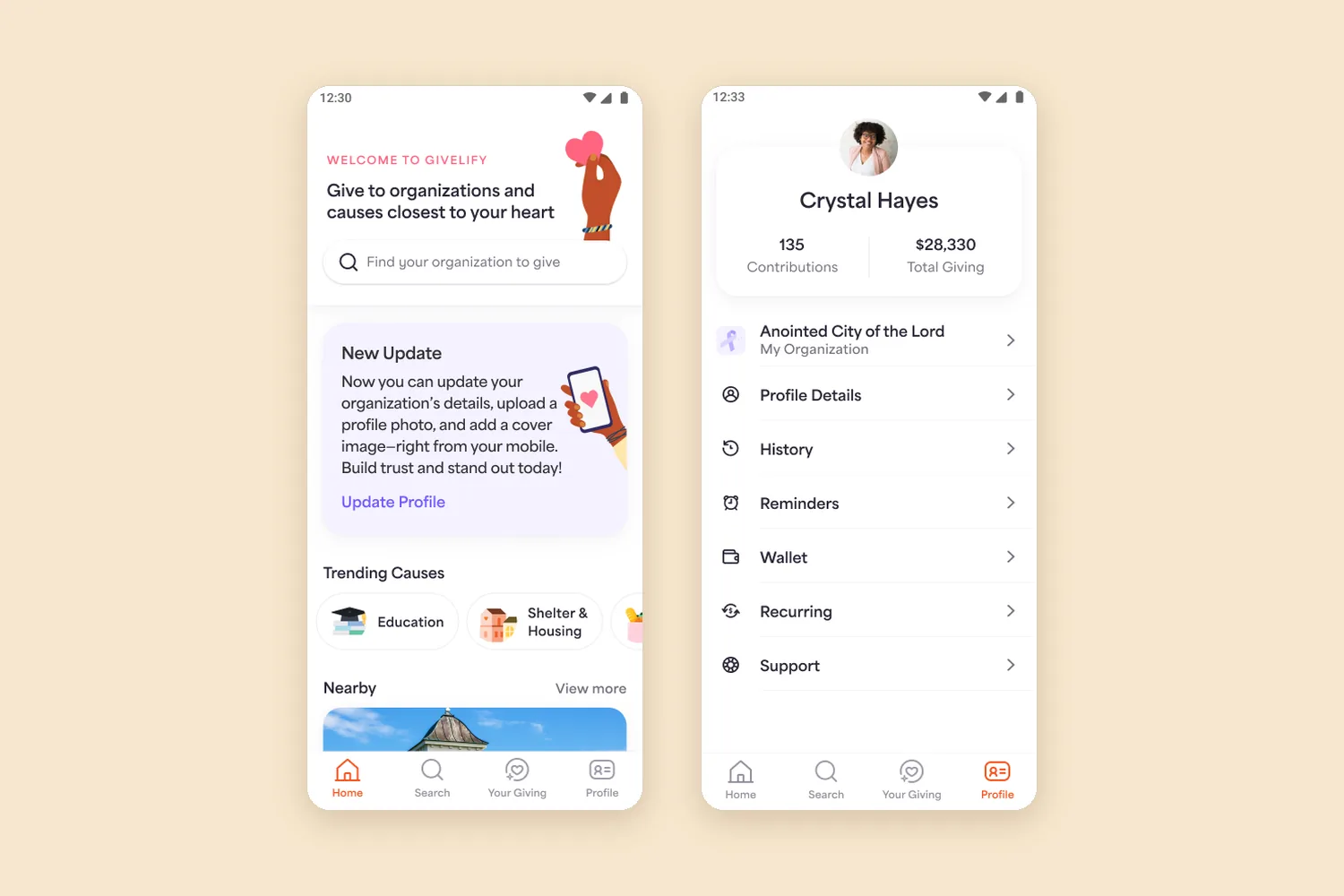
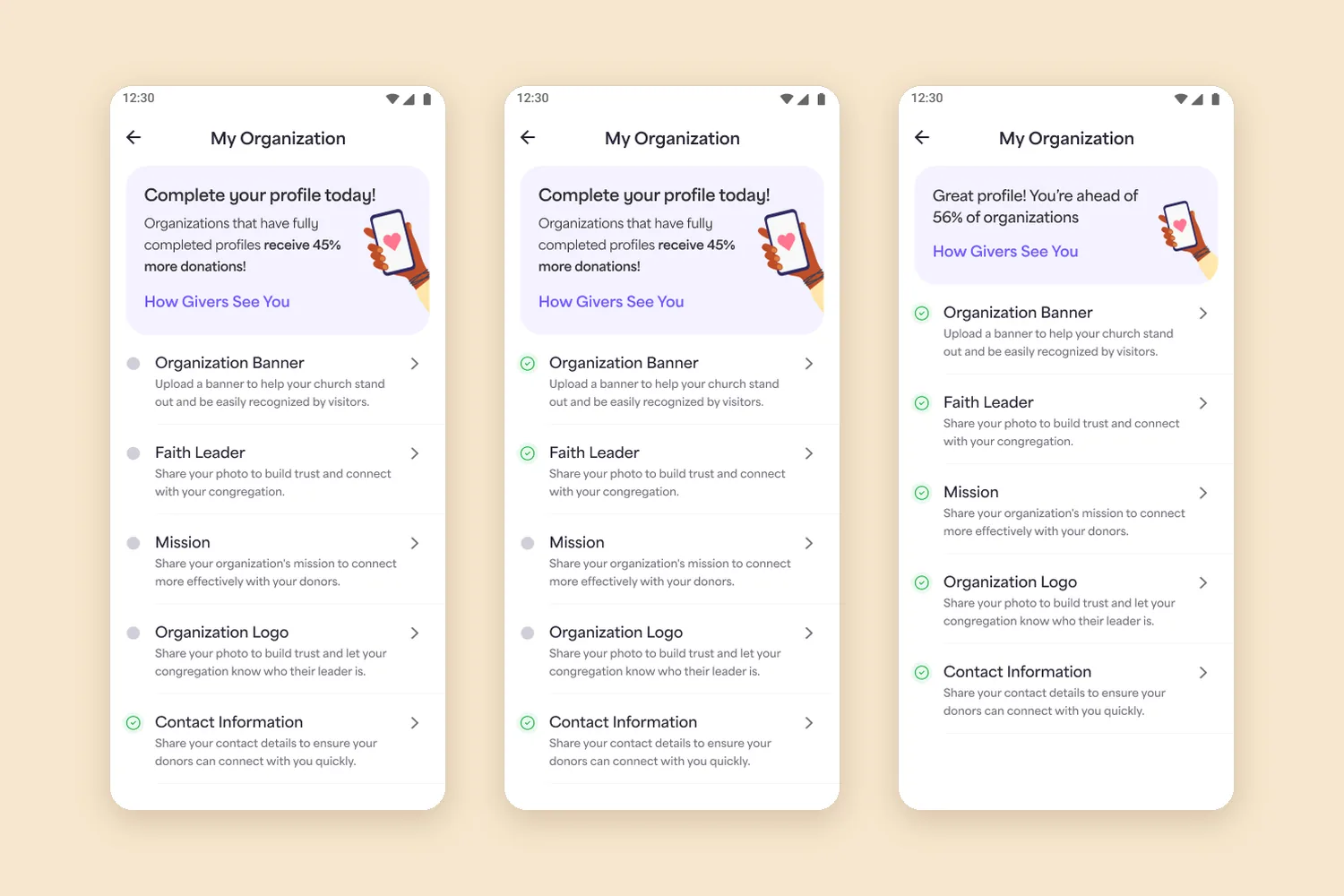
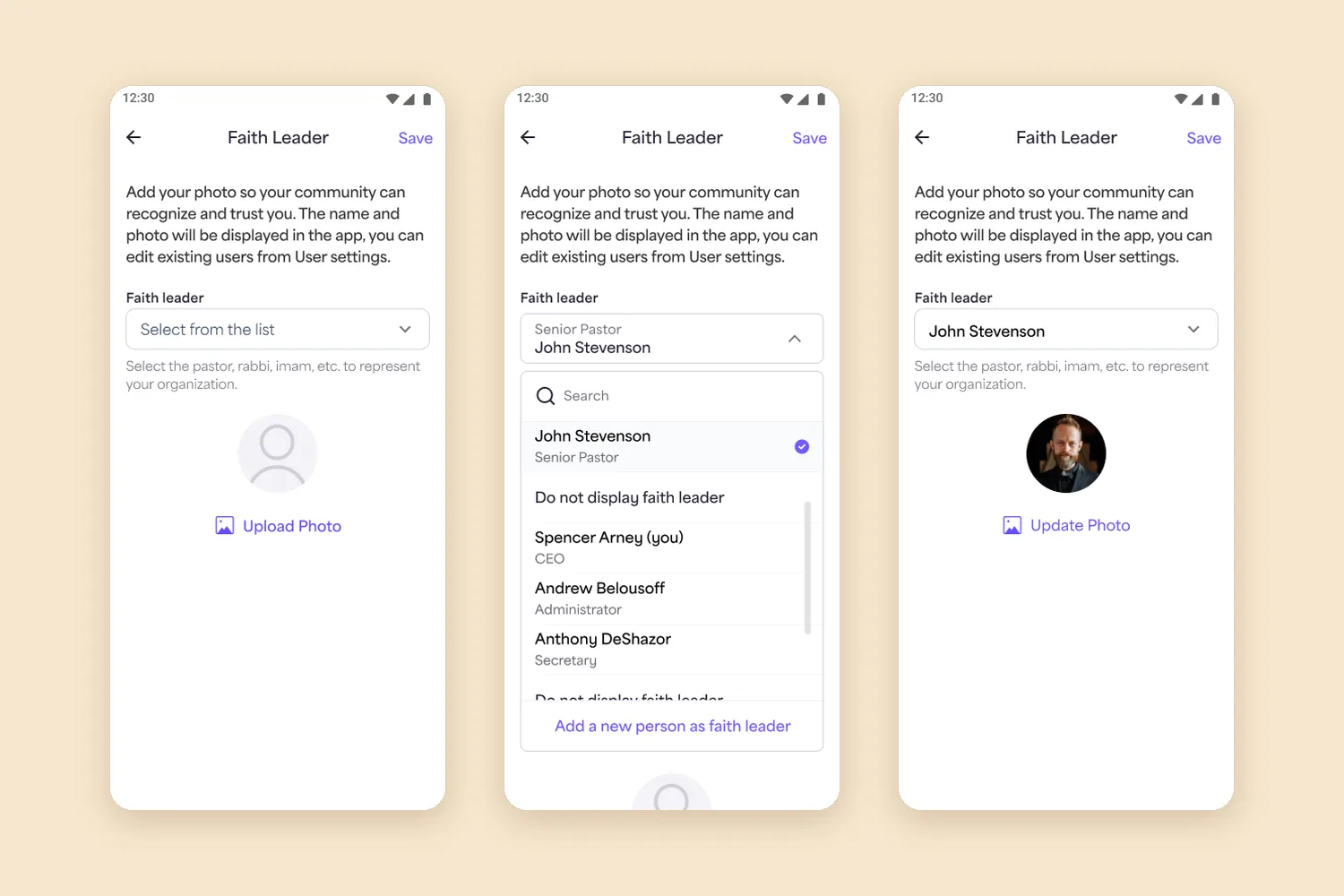
Key decisions
Explaining each section. Because officials set up their profile rarely and likely don’t understand the difference between the logo and the banner, each section has a short sentence explaining what it is and why it matters to donors. The stakeholder agreed with this assumption.
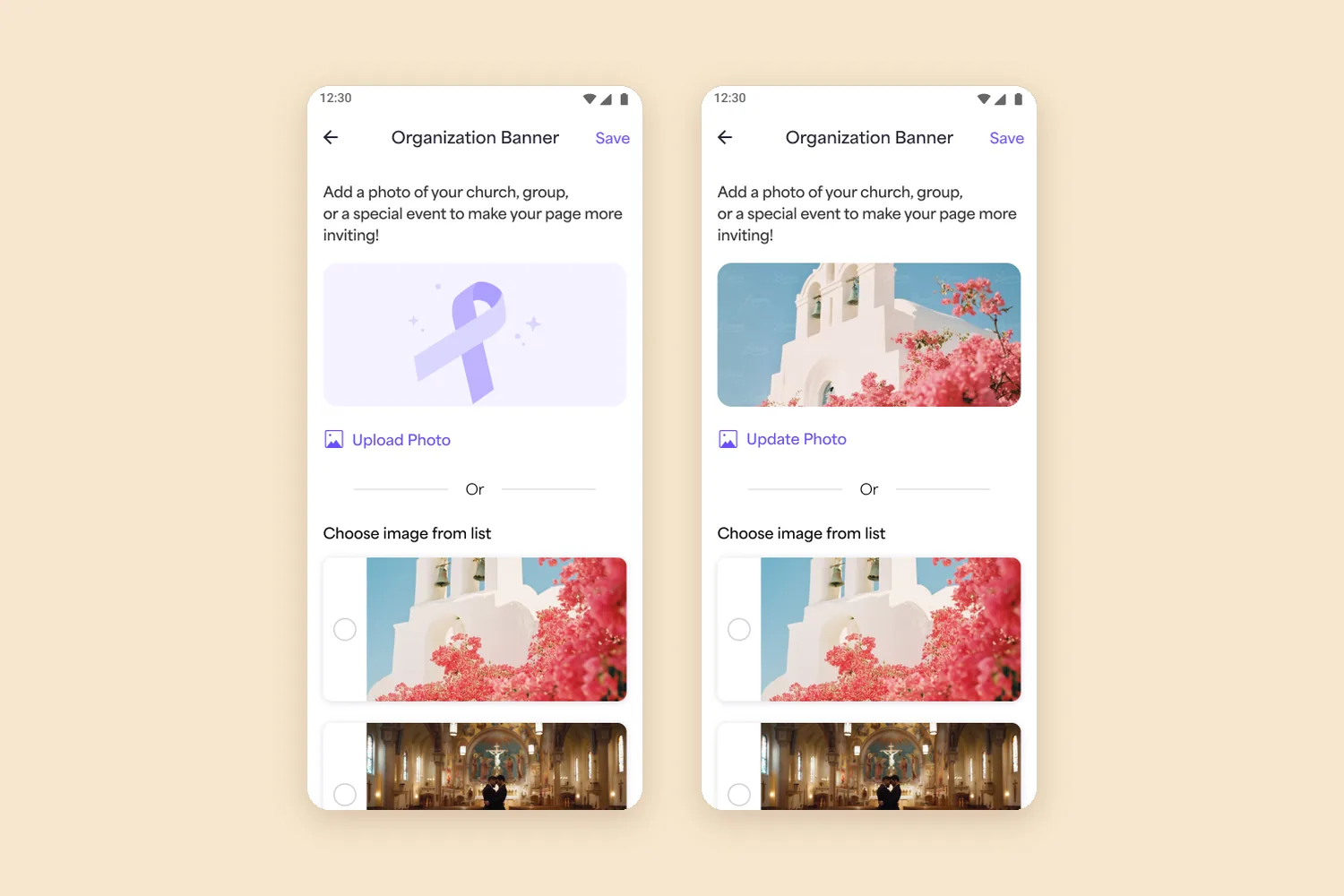
Making photos easier. To motivate more photo uploads, the banner screen lets officials choose from ready images or take a photo, not only upload one.
Sharing outside the app. I suggested a QR code to help organisations share their profile with donors; the share screen appears at the end of the flow above.
Measuring success
The brief measured success by the number of organisations with completed profiles. The figure about extra donations shown in the design is illustrative, used to explain the idea.